Keep the image useful
Text is removed and redrawn in the translated result. Colour, angle and layout are taken into account, including menus and lists. Complex backgrounds, blur and unusual lettering can affect the result.
Photo translator
Open a photo or take a new one. Read the translated image with text placed to follow the original colours, angle and layout.
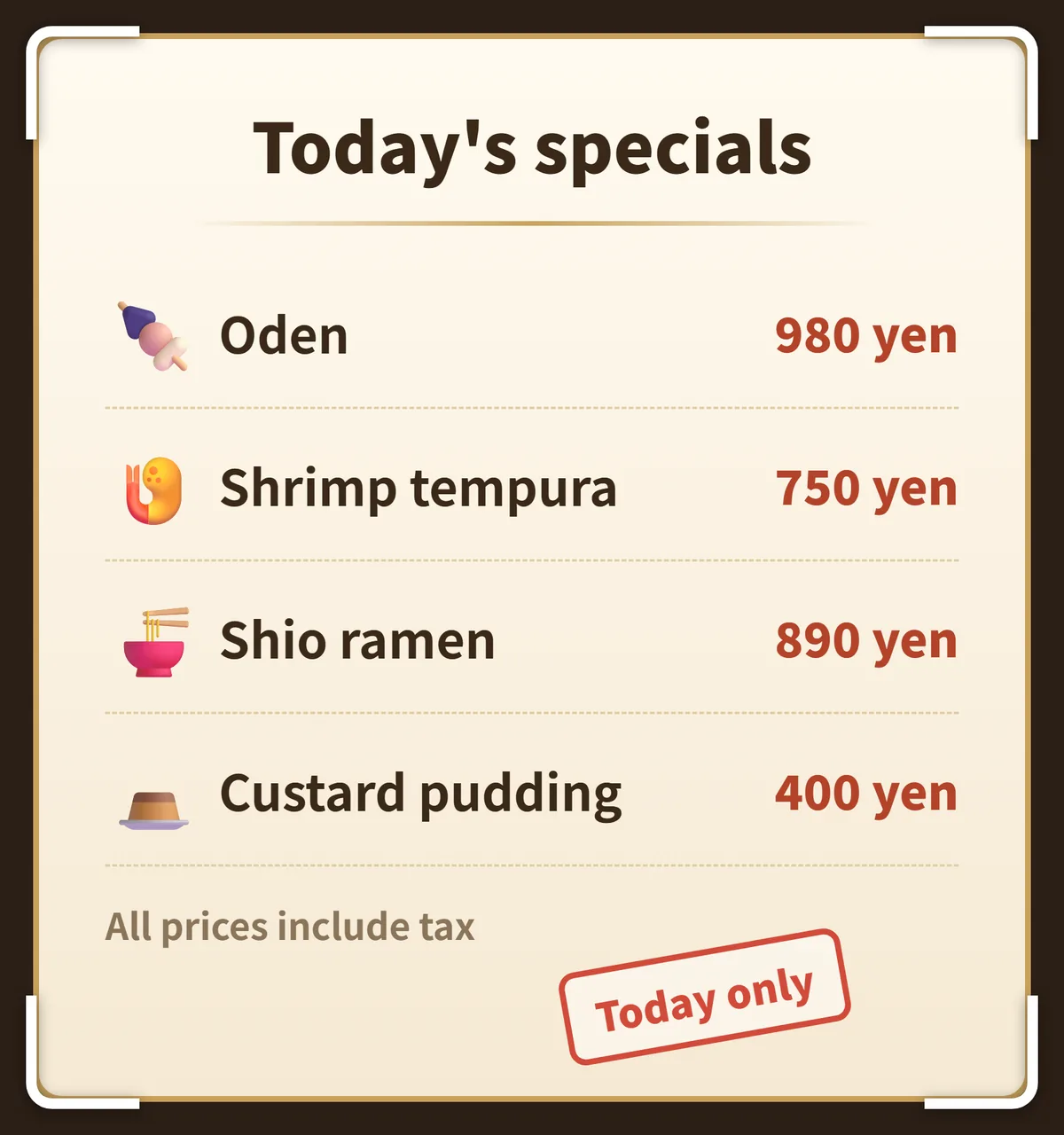
Photograph a menu, sign or label, or choose a picture or screenshot from your gallery.
Choose your languages and translate. Tap the result to compare with the original picture.
Open the editor to correct words and adjust the text appearance. Save or share the translated image.
Text is removed and redrawn in the translated result. Colour, angle and layout are taken into account, including menus and lists. Complex backgrounds, blur and unusual lettering can affect the result.
In the image editor, adjust text boxes, fonts and colours and correct recognised or translated text. Compare the output with the original before sharing.
Use a camera photo for a sign in front of you, a gallery image for a saved screenshot, or live camera mode to update translations while pointing at text. Live mode uses on-device recognition only, and free use has a daily time allowance shown in the app.
Yes. Select the screenshot from your gallery just like a photo.
No. On-device OCR recognises supported text locally when the required models are ready. Online translation engines and cloud OCR still require a connection.
Background repair depends on the image. Check complicated textures, small text and low-resolution photos, and use the editor where needed.
Translate a batch of comic images from the home page, or use the floating ball while reading. Choose the workflow that fits your pages.
Read the guide →Open a photo or take a new one. Read the translated image with text placed to follow the original colours, angle and layout.
Read the guide →Translate the text visible in a game without copying it or switching apps. Choose a whole screen or just the area you need.
Read the guide →Translate the visible subtitle text in a video or live stream. Select its area so the app can focus on the dialogue you are following.
Read the guide →